Who Created This Role, and Why Is It Making 4,000 Calls an Hour?
An unknown IAM role shows up with a burst of API calls. Answering who created it, what it touched and whether to stop it usually takes a security team hours of CloudTrail queries. Here is how to get the whole picture on one screen, in seconds — and contain it for an hour while you decide.
It is 16:40 on a Thursday. A cost alert fires, or a teammate pastes a role name into the security
channel: data-sync-prod. Nobody on the call recognizes it. In the last hour it has made thousands of
API calls — mostly ListBuckets, GetObject and AssumeRole.
Five questions decide what happens next:
- Who created this role, and when?
- What has it done in the last 15 minutes, hour, and day?
- Where are the calls coming from — which IP addresses, access keys and countries?
- What is it connected to — which policies give it this access, which instances or functions use it, which buckets did it touch?
- Should we stop it — and can we undo that if it turns out to be the nightly data export?
Every security team can answer these questions. The problem is how long it takes.
Why this takes hours in most companies
The data exists. AWS records every one of these calls in CloudTrail. But getting answers out of CloudTrail is slow work:
- The CloudTrail console lets you look up 90 days of management events, but with one filter
attribute at a time and no aggregation. "Top 10 actions of this role in the last hour" is not a
query you can run there. Object-level S3 calls such as
GetObjectare not there at all. - Athena or CloudTrail Lake can aggregate, but someone must know the table layout, write SQL
against nested JSON, and wait for each query. A role acts through temporary sessions, so its
calls are recorded under
arn:aws:sts::…:assumed-role/data-sync-prod/<session>— a query on the role ARN finds nothing. - "Who created it" is a separate search for a
CreateRoleevent, often in a different account or region than the activity, and often older than the default search window. - Relationships are not in CloudTrail. Which policies are attached, which instance profile or Lambda function uses the role, which trust policy lets someone assume it — that means a second tool, the IAM console, or a script.
- Containment is a ticket. Writing a deny policy correctly under pressure, for a role that might run a production job, is exactly the change people hesitate to make.
A good engineer can do all of this. It commonly takes two to four hours, several consoles and a page of notes — while the role keeps working.
The same investigation on one screen
Here is the same investigation in AWS Cloud Governance, which runs inside your own AWS account and keeps a queryable copy of your CloudTrail activity next to a live inventory of your resources.
1. Open the actor, not the logs
Pick the role in the Events explorer. Activity is grouped by the identity behind it, so the role's assumed-role sessions are already collected under one actor. Use the quick range buttons — 15m, 1h, 24h, 7d — to change the window.
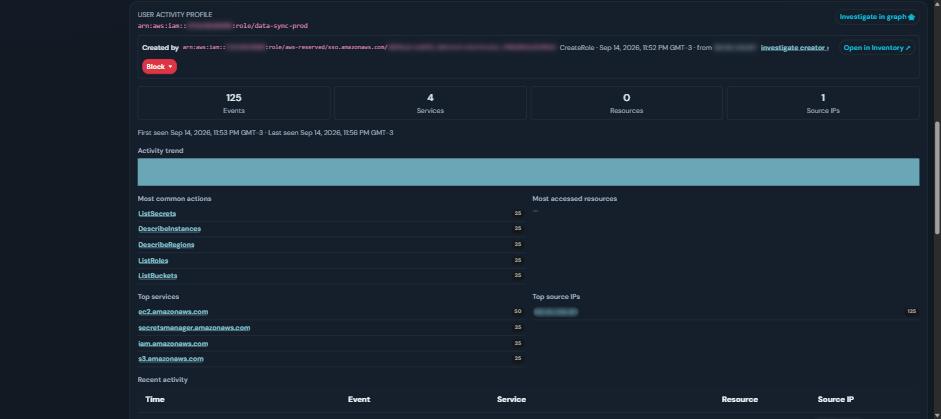
The profile answers question 2 at a glance: total events, distinct services and resources, first and last seen, a daily trend, the most common actions, the most accessed resources and the top source IPs. Every item is clickable and narrows the investigation.
2. Who created it
The top of the profile shows Created by: the principal that called CreateRole, when, and from
which IP address. One click follows the creator and shows what they did from that moment on —
often the fastest way to tell a forgotten automation from an intruder's backdoor.

3. Where the calls come from
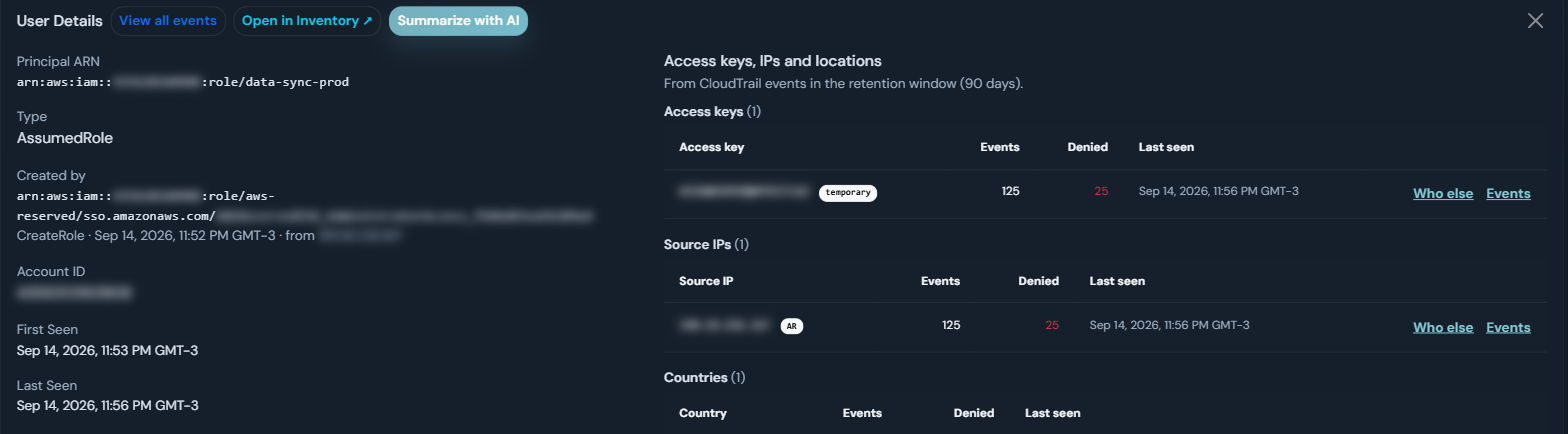
The Entities page lists every access key, source IP and country the identity used in the last 90 days, each with its event count and denied calls. Search any value to answer the reverse question: who else used this IP address or this access key?
4. What it touched and what it is connected to
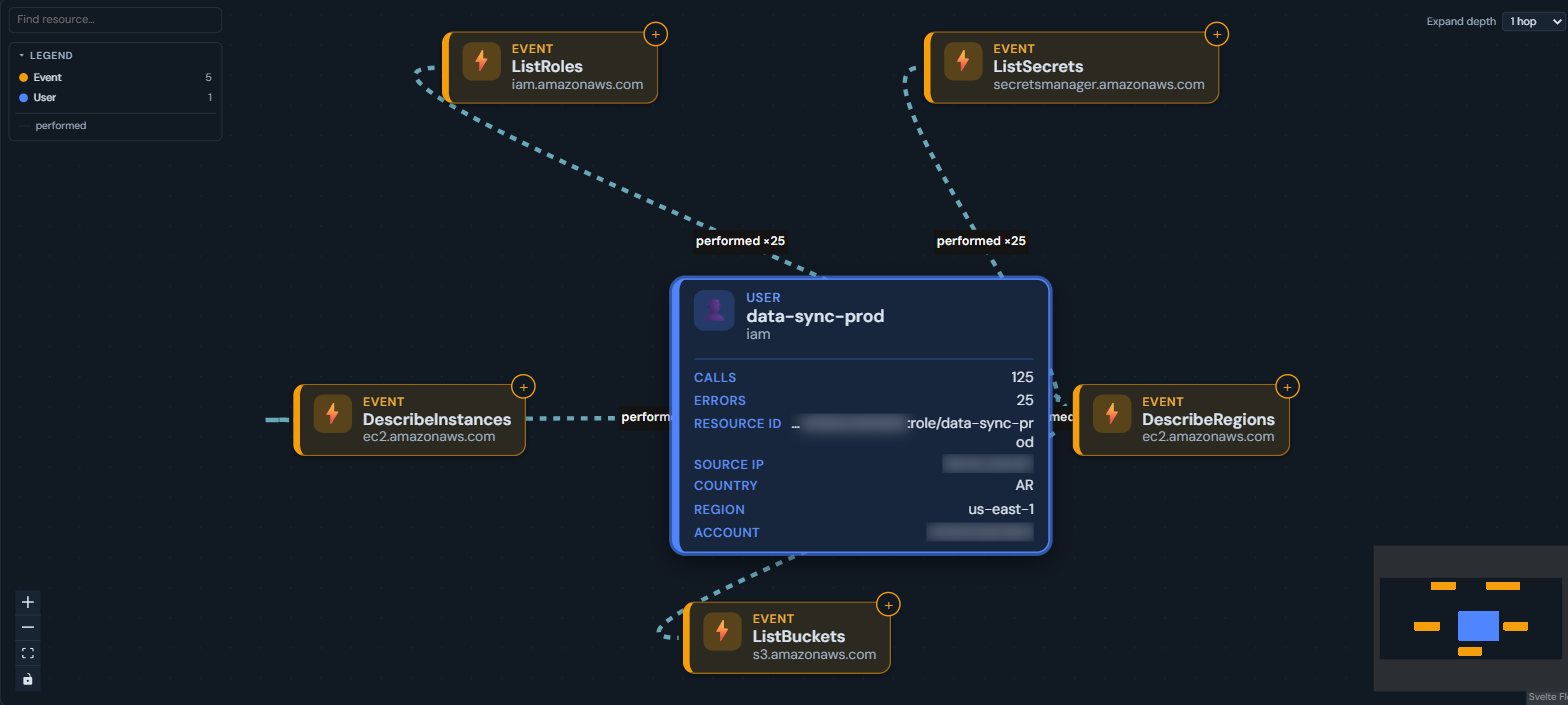
The Investigation Graph links the actor to the actions and resources in the time window — anchor it on one event and widen to ±15 or ±60 minutes to see the whole burst. Select any resource node and choose Open details to jump straight to that resource in the inventory.
In the inventory, the role's detail page shows its current configuration, who created it, and a tab for each relation — attached policies, groups, instance profiles — with a graph view that walks those relations several hops out. Activity opens the calls that targeted the role and Actions by this identity opens everything it did.

5. Contain it for an hour — reversibly
If the role should not be doing this, block it without writing a policy: Block for 1 hour, Block for 24 hours, or Block until released. Its active sessions are revoked and new calls are denied. A timed block lifts itself automatically; any block can be released with one click, and every block and release is recorded in the Actions log.

A one-hour block is the right tool for the 16:40 problem: it stops the bleeding, gives the owner time to come forward, and cannot turn into a forgotten outage.
Hours versus seconds
| Question | Typical approach | With AWS Cloud Governance |
|---|---|---|
| Who created the role? | Search CreateRole in each account and region |
Created by on the profile |
| What did it do in the last hour? | Athena query on assumed-role ARNs | Quick range + profile |
| Where from? | Aggregate sourceIPAddress and access keys by hand |
Keys, IPs and countries table |
| Who else used that IP? | Another query | Who else |
| What is it connected to? | IAM console, scripts | Inventory relations and graph |
| Stop it safely | Hand-written deny policy, change ticket | Block for 1 hour, one-click release |
What to set up before you need it
- Forward CloudTrail management events — including read-only events — from every account you care
about. Most reconnaissance is
List*,Describe*andGet*. - Enable S3 data events on the buckets that matter, so object reads show up in the investigation.
- Collect the inventory for the same accounts and regions, so relationships and creators line up.
- Keep at least 90 days of events. A role created four months ago will not show its creator.
Try it on your own account
AWS Cloud Governance deploys into your AWS account from one CloudFormation template, and your data never leaves it. Start a free 3-month trial at https://trustpartners.tech, open the Events page, and pick the identity you know least about.